Start Here
Never heard of MCP? Not a developer? This page is for you.
What is JauMemory?
Every time you start a new chat with an AI assistant, it starts from zero. It doesn't remember what you told it yesterday, what project you're working on, or that you already explained your situation three times.
JauMemory fixes that. It gives your AI tools one shared, long-term memory. Tell Claude something on Monday, and ChatGPT can recall it on Tuesday. Mention your project in one app, and every connected app knows about it. Your memories are stored encrypted on JauMemory's servers, private to your account, and they stay until you delete them.
You don't need to write any code to use it. You set it up once (that's what this page walks you through), and from then on you just talk to your AI normally: "remember this", "what did I say about...", and it works.
What is MCP?
MCP stands for Model Context Protocol. It's a standard way for AI assistants to plug into outside services, a bit like how any brand of lamp can plug into any wall socket. Claude, ChatGPT, Cursor, and many other AI apps all speak MCP. JauMemory is an MCP service, which is why the same memory can plug into all of them at once. That's the whole concept; you never need to think about MCP again after setup.
What You Need
- An invite. JauMemory is in private beta, so accounts are invite-only. Requesting one takes a minute (Step 1 below).
- An AI app that supports MCP. Any of these work: claude.ai, ChatGPT (Plus/Pro), Claude Desktop, Claude Code, Cursor, Cline, Windsurf, VS Code, and many more · the full list with setup blocks is in the docs.
- For desktop apps only: Node.js. This is a free program that lets your computer run the small helper JauMemory uses. If you don't have it, download it from nodejs.org (choose the "LTS" version) and install it like any other program. Using claude.ai or ChatGPT in the browser? Skip this entirely; that connection needs no installs at all.
Step 1: Get an Invite
Fill out the short form on the Request an Invite page. It asks who you are and what you use AI for. When you're approved, you'll get an email with an invite code.
Already have a code? Skip straight to Step 2. There's also a condensed version of this whole setup on the welcome page.
Step 2: Create Your Account
Go to mem.jau.app/signup, enter your invite code, and pick a username and password. This account is where your memories live, and it's also where you'll approve logins later. Keep your username and the email you signed up with handy; you'll type them once in Step 4.
Step 3: Connect Your AI App
Your AI app needs to be told that JauMemory exists. Pick whichever of these two ways fits how you use AI. You only need one.
Easiest: add a connector · no files to edit (claude.ai and ChatGPT)
-
Copy your link
Log in at mem.jau.app, open MCP Connections in the sidebar, and click Copy next to your personal link.
-
Add the connector
In Claude's Settings → Connectors choose Add custom connector, or in ChatGPT's Settings → Connectors choose Add custom MCP server, and paste your link.
-
Click Allow
Your browser asks you to approve the connection. Sign in and click Allow. Done · no files touched.
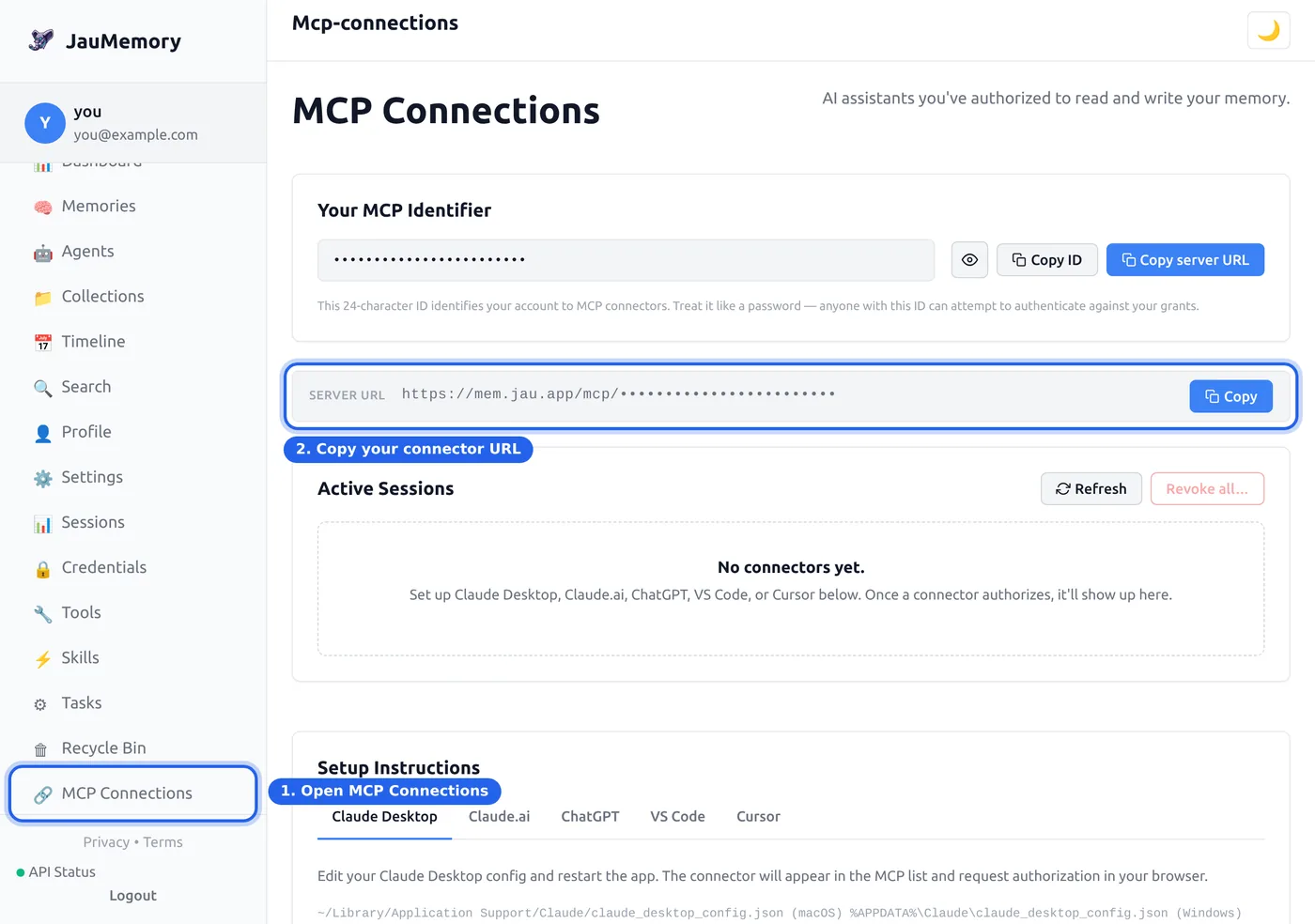
(ChatGPT needs Plus/Pro with Developer Mode turned on.)
One more thing after this
Allowing the connection introduces the apps to each other, but it doesn't unlock your memories by itself. The one-time login in Step 4 does that, so don't skip it.
The other way: edit one config file (desktop apps)
For desktop apps like Claude Desktop and Cursor, you paste a small block of text into a settings file. It looks scarier than it is: it's copy, paste, save, restart.
This is the block for most apps:
{
  "mcpServers": {
    "jaumemory": {
      "command": "npx",
      "args": ["-y", "@jaumemory/mcp-server"]
    }
  }
}
Claude Desktop
- Open the file
claude_desktop_config.json. Where it lives:- Mac:
~/Library/Application Support/Claude/claude_desktop_config.json - Windows: press Win+R, type
%APPDATA%\Claude, press Enter, and openclaude_desktop_config.jsonin Notepad
- Mac:
- If the file is empty, paste the block above exactly as-is. If it already has content, add the
"jaumemory"part inside the existing"mcpServers"section. - Save the file and fully quit and reopen Claude Desktop.
Claude Code
Open a terminal and run one command:
claude mcp add jaumemory -- npx -y @jaumemory/mcp-serverCursor
Create (or edit) the file .cursor/mcp.json in your project folder and paste the same block.
Cline
Cline needs two small extras: first install the connector globally (npm install -g @jaumemory/mcp-server in the same terminal environment Cline runs in), then use this slightly longer block in Cline's MCP settings:
{
  "mcpServers": {
    "jaumemory": {
      "type": "stdio",
      "timeout": 60,
      "command": "npx",
      "args": ["-y", "@jaumemory/mcp-server"]
    }
  }
}
Windsurf / VS Code with Copilot
Paste the standard block into the app's MCP settings file (.vscode/mcp.json for Copilot, wrapped in its "mcp": { "servers": ... } format · see the Configuration section for the exact shape).
Step 4: Log In (One Time)
This step is for everyone, whichever path you took in Step 3. Open your AI app and type, in plain English:
Log me in to JauMemory. My username is YOUR-USERNAME and my email is YOU@EXAMPLE.COMHere's what happens next:
- Your AI replies with a link. Click it.
- Your browser opens mem.jau.app. Sign in with your account and click Approve.
- The page shows you a short code, something friendly like
happy-star. - Go back to your AI chat and paste that code in. Done.
Two things worth knowing: the link expires after 5 minutes (if you miss it, just ask to log in again), and you'll only do this once per device. Your login is saved securely on your computer (in the operating system's keychain) and refreshes itself. You never type a password or paste a secret key into the chat itself.
Step 5: Your First Memory
Type something like this into your AI chat:
Remember this: I'm working on a garden renovation project. Budget is $2,000, and I want low-maintenance native plants.Your AI will store it in JauMemory. Then test it:
What do you remember about my garden project?It should come right back. That's the whole daily workflow: say "remember" to save, ask naturally to recall.
Step 6: The Magic Moment
Now open a different connected AI app · say you stored the memory in Claude Desktop, open ChatGPT (or the other way round) · and ask:
What do you know about my garden project?Same memory, different app. From now on, everything you save follows you across every AI tool you've connected. That's JauMemory.
You're set up!
You never have to touch a settings file again. Want your memory pre-configured for how you actually work? Grab a starter template: copy-paste prompts for personal memory, coding, team workflows, and more. And when you're ready to go deeper, the full documentation is there. But "remember this" and "what do you remember about..." will carry you a very long way.
Words You'll See
MCP
Model Context Protocol. The standard "plug" that lets AI apps connect to services like JauMemory. You set it up once and forget it.
Tool
A single action your AI can perform through MCP, like "store a memory" or "search memories". JauMemory provides 50 of them; your AI picks the right one automatically.
Memory
One saved piece of information: a fact, a note, a task, an insight. Each memory has tags and an importance score so it's easy to find later.
Collection
A folder for related memories. For example, one collection per project or per trip. Optional, but handy once you have lots of memories.
Agent
A named AI helper with its own slice of memory. An advanced feature for people running several AI assistants that need to coordinate. You can ignore this entirely as a beginner.
Troubleshooting
"npx: command not found" (or the app says the server won't start)
Node.js isn't installed, or the app can't see it. Install the LTS version from nodejs.org, then fully restart your AI app. On Windows, restart the computer after installing so every program picks up the change.
Windows: errors mentioning "TAR_ENTRY_ERROR" or "EPERM"
This is a known Windows quirk with npx and file locking, not something you did wrong. The fix is to install the connector once, globally. Open PowerShell and run:
npm install -g @jaumemory/mcp-serverThen restart your AI app. If you use both regular Windows and WSL, run that command in both.
"My approval link doesn't work"
The link expires 5 minutes after it's created. Just ask your AI to log you in again and a fresh link will appear. Also make sure you sign in at mem.jau.app with the same username and email you gave in the chat.
"My AI doesn't seem to know about JauMemory at all"
Usually the config file wasn't saved, or the app wasn't fully restarted. Re-open the settings file, confirm your block is there and the punctuation matches exactly (JSON is picky about commas and braces), then quit the app completely and reopen it.
Still stuck?
Head to the support page and tell us where you got stuck. The setup should take minutes, not hours, so if it's fighting you, we want to know.